

A shopper reaches checkout, sees an age prompt, and stops. The license is in another room, the light is poor, and the account name has an old middle initial.
Many checks finish quickly once the required items are ready. A failed automated check often points to a blurry photo or a data mismatch, though model errors can also reject a valid ID. Manual review may be available.
Get the document and account details ready before reopening the prompt.
What You Need Before You Start Verification
A shopper starts checkout on a phone, gets the prompt, and stalls because the driver's license is in a wallet across the house. The cart sits. Nothing moves until the document is in hand.
Stalls almost always trace to one missing piece: a current photo ID, a camera with usable light, or an account name that does not match the card.
What to have in reach
Current government photo ID: A driver's license, state ID, or passport. Read the expiration date before you start.
A working camera: Phone or laptop, with enough light to read small print.
A stable connection: Wi-Fi or solid mobile data. A dropped upload is a frequent timeout.
The email on the account: The confirmation, and any review notice, lands there.
When the document is not straightforward
A name change after marriage, an expired card, an out-of-state license, a passport card instead of a book, and no photo ID at all each call for a different document. Do not invent a substitute. The table is the short version of what to use and what gets rejected.
| Situation | What to Use | Typical Time | Watch For |
|---|---|---|---|
| Standard US driver's license or state ID | Upload front and back, plus a live selfie | 2-5 minutes | Expiration date must be current |
| US passport book or passport card | Photo page upload or camera scan | 3-5 minutes | Entire photo page must be visible, no cropping |
| Expired ID | Not accepted; use a current document | Retry only after renewal | Renew the ID before retrying |
| Name changed after marriage | Upload an ID that matches the account name, or update the account name first | 5 minutes | Names must match exactly, including middle name |
| No government photo ID | Alternative method if offered, or contact customer service | Depends on the support queue | Do not submit non-photo documents as a substitute |
| Phone without a usable camera or poor light | Use a laptop webcam or stand near a window in daylight | A few extra minutes once the light is right | Glare and shadows hide text on the ID |
An out-of-state license is still a normal photo ID. The problem is glare and cropping, not the state that issued it.
A two-minute pre-check
Hold the ID: Confirm it is current and the full name matches the account, middle name included.
Test the camera: Photograph the card on a flat surface. If you cannot read the expiration date in that photo, the checker cannot either.
Open the inbox: Make sure the account email works on the same device.
If any of those fail, fix them first. Starting an upload with the wrong card only creates a rejection you have to clear later.
Instant Checks Versus ID Upload Compared
At checkout, a selfie check may take seconds, while an ID upload asks you to pause and share a document image. Each route has a different trade-off: speed, the information collected, and how often a borderline result needs another check.
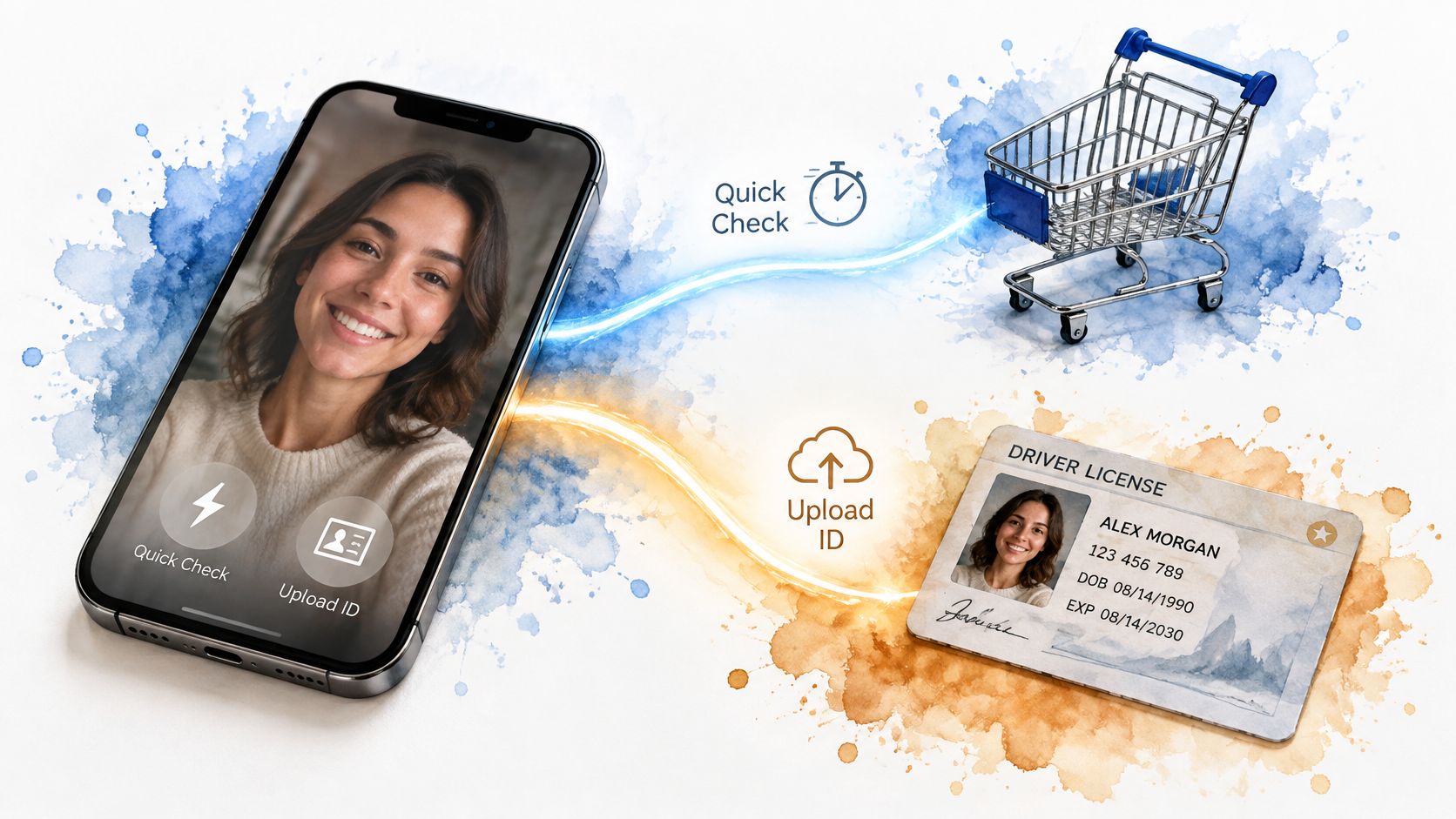
What each route actually proves
Facial age estimation uses a live selfie to estimate age. It is a screening method, not proof of a person's exact age. A Congressional Research Service summary of a NIST evaluation reports that six evaluated systems had average age estimates within 3.1 years of actual age. That figure describes average estimation error. It does not say how often a system incorrectly approves someone below a particular age threshold.
A separate study discussed in the summary examined false-adult results for minors at an 18-year threshold, comparing non-LLM models with vision-language models. Those results are specific to the study's models and conditions, not a general performance guarantee for checkout systems. For a 21+ purchase, the practical question is whether the provider refers uncertain results for another check instead of treating an estimate as conclusive.
A failed selfie check usually points to a predictable problem: the face is hard to assess in the image, or the system cannot match the input to its requirements. Poor lighting, an unclear image, or a liveness check that does not complete can prompt a retry or an ID request. A referral does not, by itself, mean the customer is underage.
Government ID upload takes longer and shares an image of a document. It can resolve a borderline selfie result, but it may also be the more direct first route when an automated estimate is likely to be uncertain. The check depends on the document being readable and the submitted details matching what the service expects.
Digital ID or a bank login can confirm age through a provider, often without sending a photo of a physical document. Availability depends on the options supported by the store and the customer's provider.
Email-based age estimation uses signals associated with an email account. Ofcom's age-assurance guidance identifies open banking, photo-ID matching, facial age estimation, mobile-network checks, credit-card checks, digital identity, and email-based estimation as methods that can be highly effective. A self-declared age or a payment method that does not require the holder to be over 18 does not provide the same assurance. A typed birth date alone is a weak choice for a 21+ order.
| Method | Typical Speed | Data You Share | Best For |
|---|---|---|---|
| Facial age estimation (selfie) | Under 1 minute | Live face image; retention depends on the provider's policy | Customers likely to be assessed clearly above 21 |
| Government ID upload | 2-10 minutes | ID image and personal details | Customers referred after a selfie check or likely to fall near the cutoff |
| Digital ID or bank-based confirmation | Under 3 minutes | Confirmation through the provider, usually without uploading a document | Customers with an enabled digital ID or bank login |
| Email-based age estimation | Usually a few minutes | Email account signals rather than documents | Customers with a long-established email account |
| Self-declared birth date | Instant | Date only, unverified | Not recommended for 21+ orders |
How to choose before you tap
If you are likely to be assessed well above 21 and have a clear camera image, a selfie check is usually the quicker route. If the estimate is uncertain, be ready for an ID request rather than repeatedly submitting selfies.
Choose an ID upload if you expect the automated estimate to be borderline or have already been referred. If you do not have a photo ID or cannot take a usable selfie, check whether the store offers a digital ID or another supported method before starting.
Protecting Your Privacy During Verification
A checkout check can take only a few minutes, yet it may ask for an ID image, a selfie, or personal details. Before sharing them, check who handles the information and what happens after the age decision. A government ID can prove age, but keeping a copy creates a separate risk of exposure, sharing, or later use.
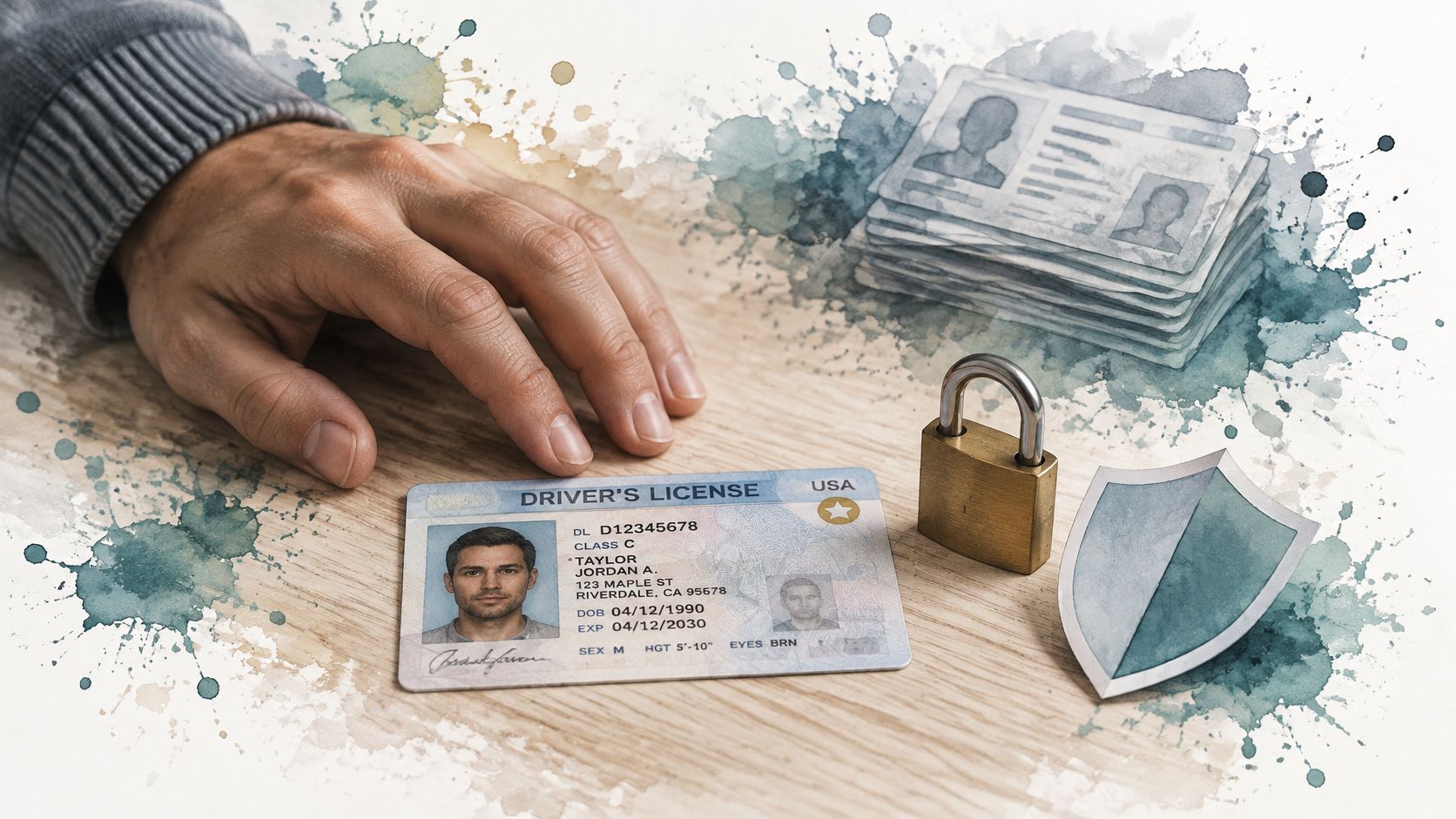
A Congressional Research Service overview discusses the trade-offs between verifying age, protecting privacy, and securing personal information. For shoppers, the practical question is whether the check confirms adulthood without collecting or retaining details the store does not need.
Four questions before any upload
- Does the store keep the image? Check whether a verification provider reviews the document and sends the store only an age result. That can reduce the information the store receives, though the provider's handling practices matter too.
- How long is the data kept? Look for a clear retention period and deletion policy. An ID image left on an account after the check creates an additional exposure risk.
- Who else receives it? Find out whether the store shares the image or related details with a verification provider or other parties, and what protections apply.
- Will it be used for marketing? Check whether the policy limits the information to the age check or also connects it to advertising or a customer profile.
More identity details do not necessarily make an age decision better. A failed automated check often points to a blurry photo or a mismatch between the form and the ID, not an age problem. If the provider asks for another attempt, check the image quality and spelling before sending more information. Choose the option that shares the least data while still letting you complete checkout.
What a sound policy does
The FTC's statement on age-verification technologies indicates that the agency is addressing the use of these tools to protect children. Check the store's privacy policy for specific details about what is collected, how long it is retained, who can access it, and whether it is used for another purpose. Consider privacy beyond the check itself, including the name shown on a card statement and the packaging. Read the store's information about discreet shipping before placing an order.
If the check fails, ask how the submitted images are handled and whether they are deleted. A rejection alone does not mean the store needs to keep an ID image.
How to Complete Online Verification Step by Step
The age verification process usually starts at purchase, not while you are browsing. Have the ID and the camera ready before you open the cart.
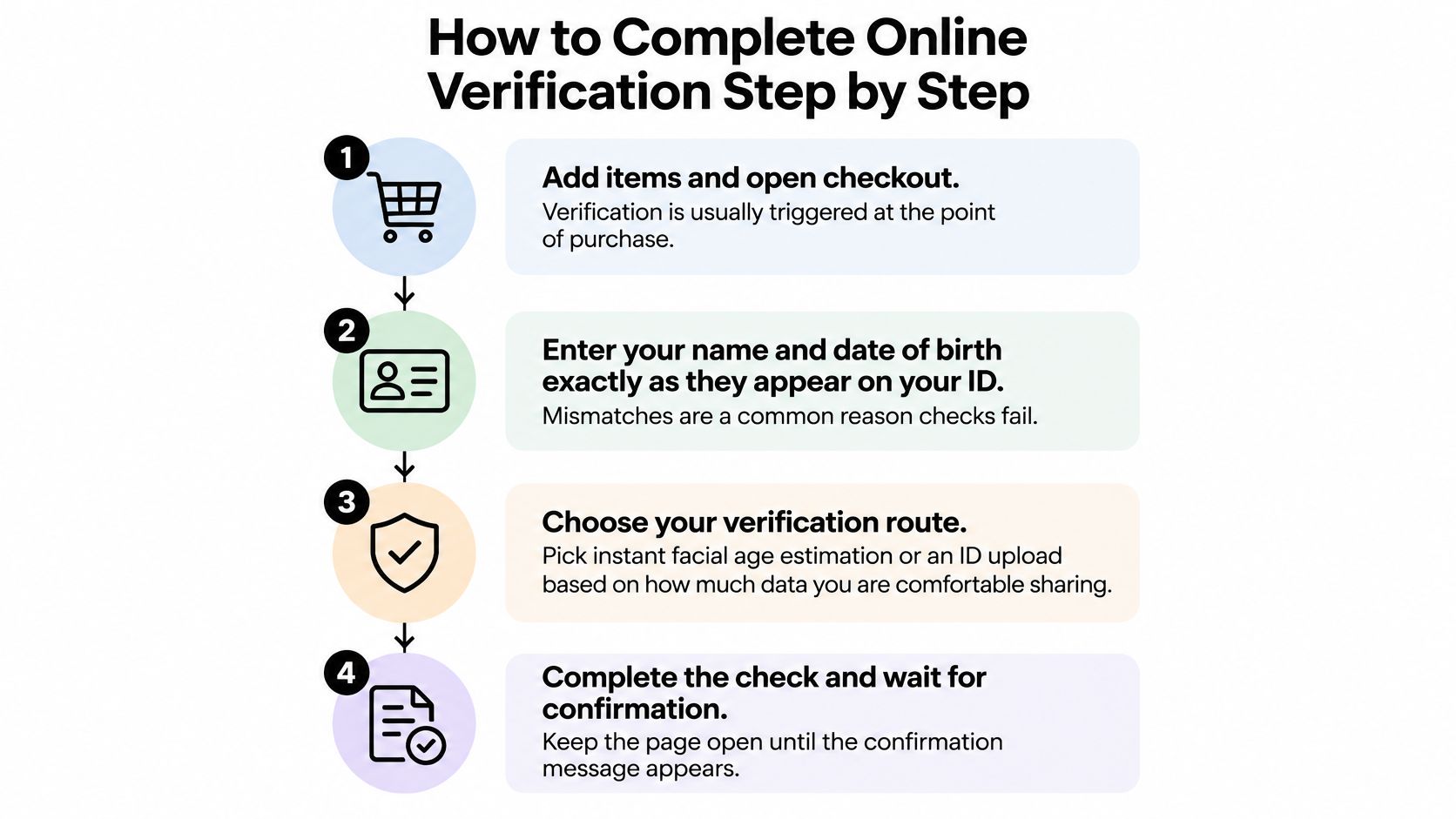
The sequence and why each step exists
Add the items and open checkout. The prompt is tied to buying. Opening it before you can pay only starts a clock.
Enter your name and date of birth exactly as they appear on the ID. A dropped middle name, or a month and day swapped, is a common fail. The screen is matching text, not guessing.
Choose the instant check or the ID upload. Use the selfie only if a face image is acceptable to you and you are not close to 21. Otherwise take the document route on the first try.
Photograph the front and the back. Use daylight, a flat dark surface, and all four corners. Keep glare off the laminate. A passport needs the full photo page, with nothing cropped.
Take a live selfie facing the camera. Remove glasses or a hat if the prompt says so. A picture of a screen, or a filtered camera app, fails the live-person test.
Wait on the same page. Instant checks often return within a minute. A manual ID review takes longer. Closing the tab can drop the attempt.
Look for an approved 21+ status before you return to the cart. A birth date you typed is not an approval.
Finish payment and the delivery address on that same account. Approval is often bound to the account and the order. A new card or a new address can ask for the check again.
Save the confirmation email and the reference number. Support will ask for both if the attempt needs a lookup.
Camera distance is easier to see than to describe. This short clip shows a flat card and a straight-on scan.
What the layers are checking
A solid flow is not an open date-of-birth field. NIST separates the work into resolving the claimed identity, validating the evidence, and verifying that the person presenting it is the person it was issued to. In checkout terms that is four moves: collect only what you need, check a license or passport for authenticity and current status, match the live person to that document, and return only an eligibility result to the merchant.
Challenge questions alone are not enough, and a shopper should not be able to step back and type a different age. What should remain is the decision, a vendor reference, a timestamp, and the policy version. The document image does not need to stay once that decision is made.
Practical rule: Change the address or the card before you verify. Doing it afterward often triggers a new check.
Fixing a Failed or Stuck Verification
A checkout can stall on one blurry photo or a name that does not match. A failed automated check usually points to photo quality or a data mismatch, not an age problem. Glare on a laminated card, a cropped corner, dim lighting, or a photo of a screen can prevent a clear read. Face-estimation tools can also misread a face under poor lighting or for some people. Treat the result as a prompt to check the image or details before trying again.
What the error usually means
| Symptom | Likely Cause | Fix |
|---|---|---|
| Selfie rejected as not live | Glare, low light, or a photo of a screen | Retake near a window with your face centered and no filters |
| ID rejected as unreadable | Blur, glare, or cropped corners | Lay the ID on a dark, flat surface, shoot straight on, and fill the frame |
| Name mismatch | Account name differs from the ID | Match the ID exactly, including middle initial, or update the account before retrying |
| Date of birth error | Typo or wrong date format | Re-enter the date in the format shown on your ID |
| Expired document error | ID is past its expiration date | Use a current ID or passport |
| Stuck on loading or timeout | Unstable connection or browser extension interference | Switch to Wi-Fi or mobile data, pause ad blockers, or try another browser |
| Estimate close to 21 | Result falls in an uncertain zone | Choose the document step rather than repeating the selfie |
| Valid ID rejected | Possible model error | Request manual review through customer service with your order number |
Escalation, in this order
Retry once in better light. Center your face, remove filters, and keep the camera steady. One clear attempt is more useful than submitting the same poor image repeatedly.
Switch to an ID upload if the option is available. Place the document flat, include all four corners, and check that the printed name and date of birth are sharp before submitting.
Ask for manual review if a valid document still fails. Send the order number through customer service so the team can locate the attempt. Avoid sending the same sensitive images again unless support requests them, and never use another person's ID.
If you do not have a smartphone, stable internet, or an accepted photo ID, contact support before another attempt. Ask what non-biometric or accessibility options are available. A brief pause to confirm the right route can prevent repeated uploads and keep the issue focused on the actual failure point.
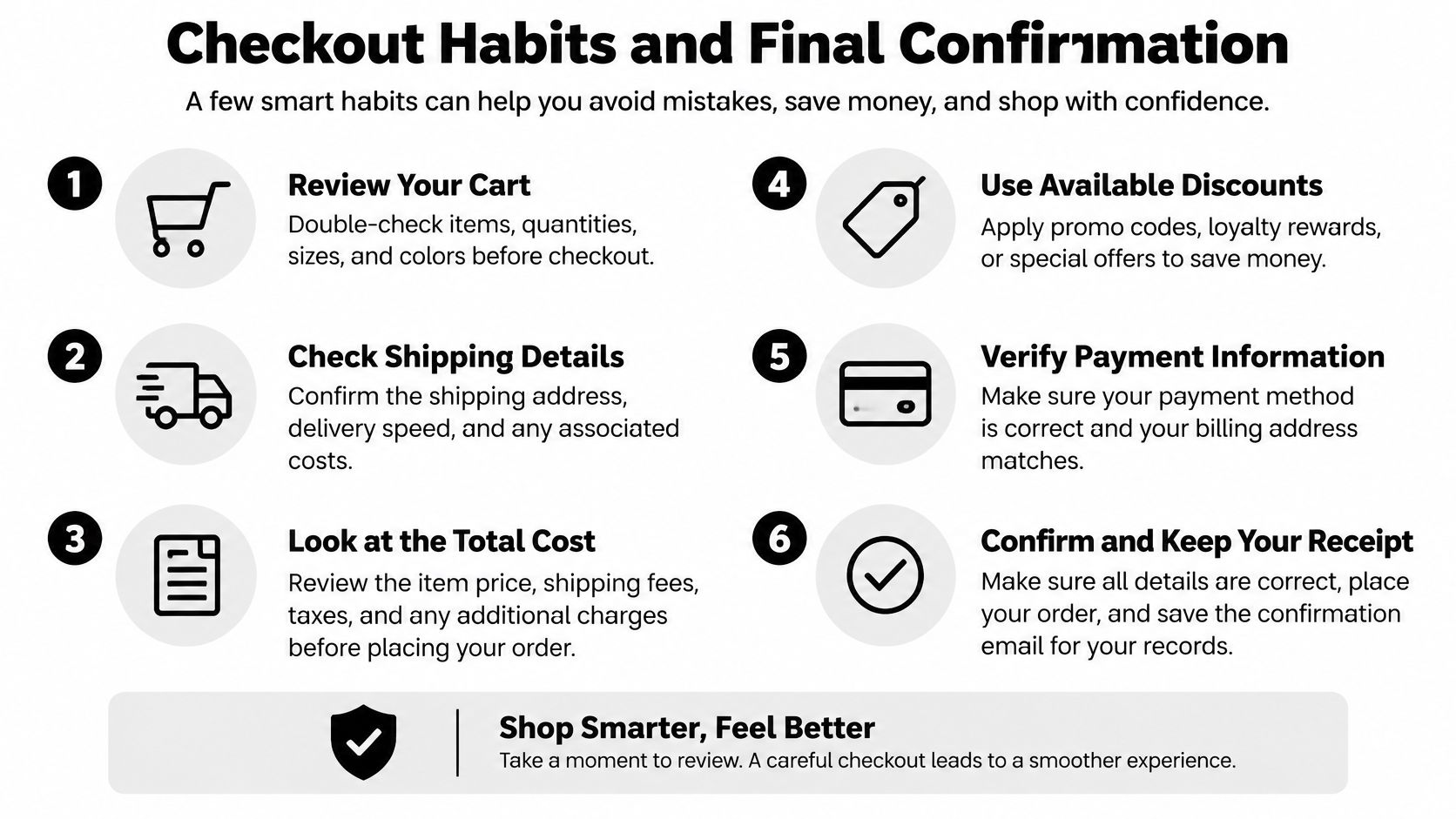
Checkout Habits and Final Confirmation
A screen showing approval means the online check is complete. Before paying, confirm the order details and review the privacy page for how the provider handles ID information, including retention and sharing.
Timing that keeps the order moving
Verify before placing a large order. If an automated check fails, the cause is often a blurry photo or a mismatch between the details entered and the ID. Check these first, then request manual review if needed.
Check shipping information before checkout. Review tracked nationwide shipping and contact support if verification is holding up your order.
Save the confirmation and reference number with your order record. If you change your address or payment details, check whether the site asks you to verify again.
The last three moves
Confirm the pre-check is complete, then place the order when the screen shows approved 21+ status. If the check keeps failing, ask for manual review rather than repeatedly uploading the same documents.
The approval status determines whether checkout can proceed. A birth date entered on its own does not confirm eligibility.
The Magic Mushroom Delivery sells psilocybin and functional mushroom products to adults 21 and older and runs an age check before an order can be completed. Review its privacy page for the provider's data retention and sharing terms. Once approval appears, visit The Magic Mushroom Delivery to finish your order.